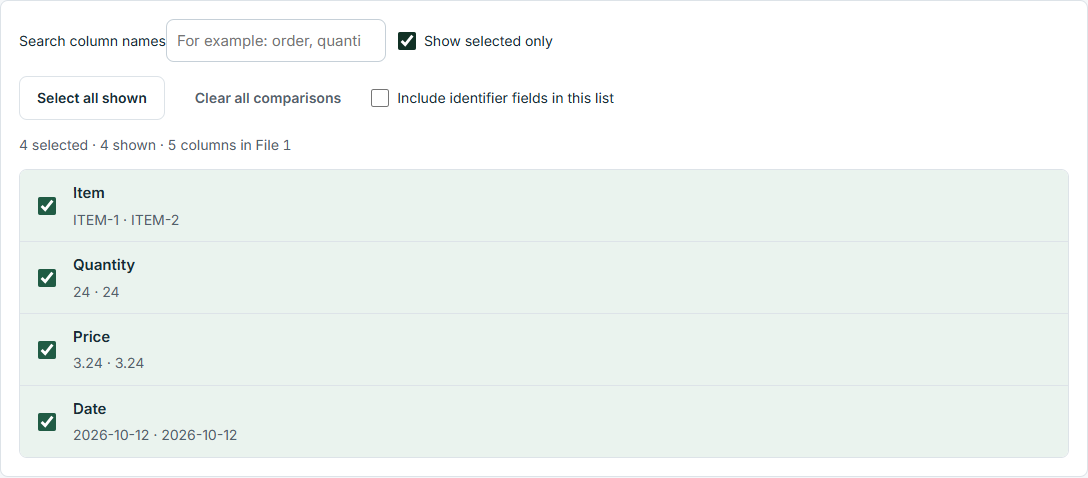
Two spreadsheets can describe the same orders while using different column names, row orders or formats. DataParity connects records using the identifiers you choose, then checks the values that matter.
Compare records even when rows have moved
Suppose one workbook lists Order 1042, Item A with a quantity of 12, while the other lists a quantity of 10. Choose Order number and Item as the combined identifier, then Quantity as a comparison field. DataParity reports that difference even if the records are on different rows.
How to compare your workbooks
Select two workbooks and review their column previews. Each file needs unique, nonblank column names.
Choose the fields that identify the same record in both files. An order number alone may not be unique when an order has several items.
Select only the values you need to compare, connect columns with the same meaning, and review suggested types and cleanup rules.
Run the comparison, inspect missing records, duplicates and changed values, then export the filtered exceptions to XLSX.
Which Excel files work?
Supported formats include XLSX, XLS, XLSM and XLSB. You can also compare a workbook with a CSV export. DataParity compares stored values and cached formula results; it does not compare formatting or execute formulas and macros. Password-protected workbooks and the Excel 1904 date system are not supported. Review the file preview before running.
Try a worked example with known results
Download these two small Excel workbooks. They contain fictional order lines, four records per file, different column names, and a different row order. Downloads are available without registration; running a comparison requires an account and an active trial or subscription.
In the identifiers step, select Order and Item. In the comparisons step, select Quantity. In the connections and rules step, choose the matching File 2 columns shown above and keep the numeric allowed difference at zero. The default cleanup settings do not change this example’s result.
Expected exceptions when you compare Quantity exactly
Order + Item
What you should find
1001 + B
Quantity differs: 5 in File 1 and 7 in File 2.
1002 + A
Present in File 1; missing from File 2.
1004 + D
Present in File 2; missing from File 1.
1001 + A and 1003 + C match. Each file has four rows, but the combined set contains five distinct identifiers because each file has one record the other lacks.
Which comparison method fits your task?
For a small, similarly arranged range, Excel formulas or side-by-side viewing may be sufficient. For changes to workbook formulas, cell formatting or sheet structure, choose a tool designed for workbook version comparison. DataParity focuses on matching business records and comparing selected values across exports, including files with different column names.
Common questions about comparing Excel files
Do both files need the same column names?
No. Connect columns that have the same meaning, such as Order and OrderNumber. Each file must still have its own unique, nonblank header names.
Do rows need to be in the same order?
No. DataParity uses the record identifiers you select. Choose a combination that distinguishes each record; row position is not the match key.
What happens when an identifier appears more than once?
Repeated identifiers are flagged as duplicates. Review whether you need another identifier column before comparing. DataParity does not silently choose one duplicate to pair.
Can I compare only a few columns in a wide spreadsheet?
Yes. Search for and select the comparison fields you need. Unselected values are not part of that comparison.
Does DataParity compare Excel formulas and formatting?
It compares stored values and cached formula results. It does not evaluate formulas, run macros or report cell-style changes. Review the previews to confirm the values you intend to compare.
Is the comparison free?
A registered user can explicitly start a 10-day trial without a payment card. To continue after the trial, choose $19 USD/month or $190 USD/year per person. The trial does not charge automatically. See pricing, cancellation and refunds.
Are my Excel source files uploaded?
Source-file contents and comparison results are processed in your browser. Account, billing and explicitly saved setup settings use online services. See what stays local and what uses the network.
DataParity interface shown with illustrative example data.
Try it with your own files
Start a 10-day trial with no payment card. After the trial, choose $19 USD/month or $190 USD/year per person to continue. The trial does not charge automatically.