Compare spreadsheets without uploading source files
If your workflow requires source files to stay on your device, the processing location matters. DataParity reads the files you select and runs the comparison inside your browser.
What stays in the comparison tab?
Source-file contents, row previews, comparison results and exception details remain in the browser. DataParity has no source-file upload endpoint. You inspect differences locally and save the exported report to your chosen download location.
What does use the network?
The website downloads application code and uses services for sign-in, billing and account features. Explicitly saving a comparison setup sends its name, column names, mappings, types, tolerances, cleanup preferences and import layout to your account. It does not send source rows or results. Avoid sensitive values in setup names and column labels. Feedback text is sent when you submit it; do not paste confidential rows into feedback.
How to check the behavior yourself
Open your browser’s developer tools and select Network before loading the workspace.
Clear the request list, select your files, configure the comparison and run it.
Inspect requests and their payloads for source-file bytes or row values. Account actions, such as saving a setup, should contain configuration rather than row data.
Repeat with nonsensitive test files and your own organization’s review process before using sensitive data.
Local processing has practical limits
Available browser memory limits file size. Reloading or closing the comparison tab discards its in-memory files and results; saved rules can be reused after selecting files again. Local processing does not replace your organization’s device, access and data-handling policies.
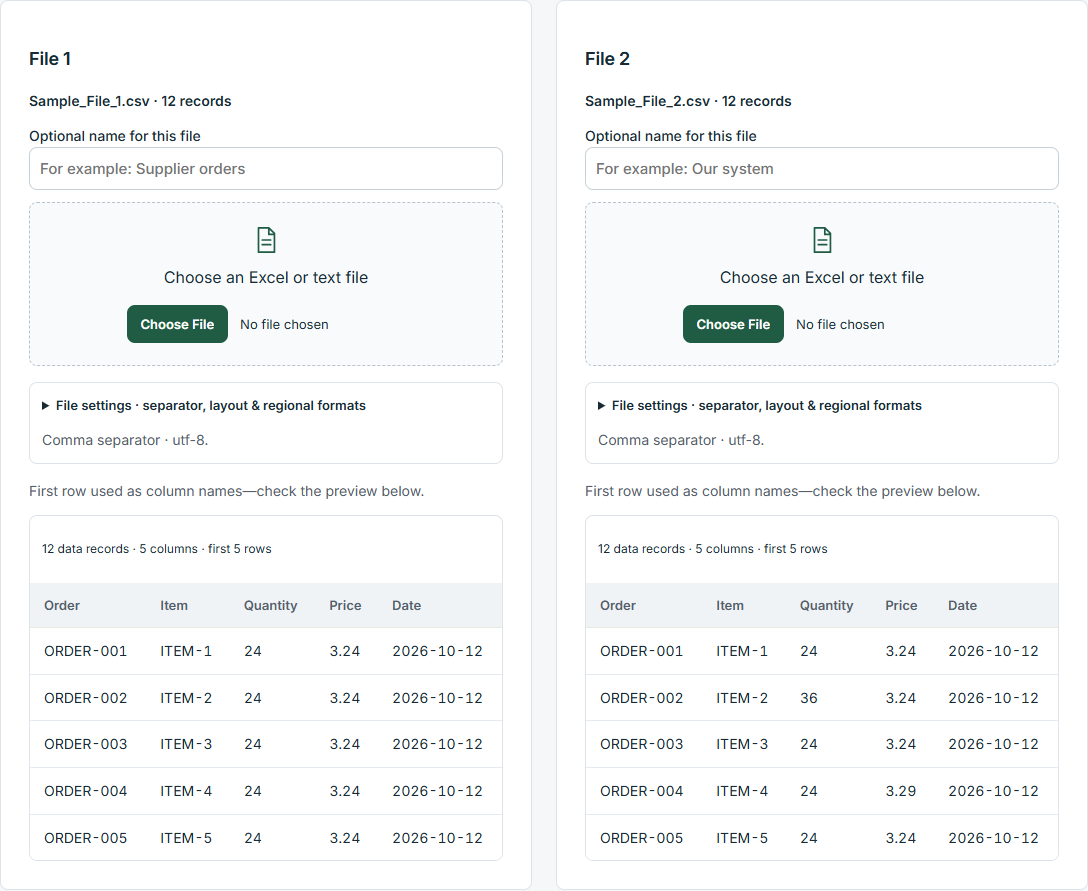
DataParity interface shown with illustrative example data.
Try it with your own files
Start a 10-day trial with no payment card. After the trial, choose $19 USD/month or $190 USD/year per person to continue. The trial does not charge automatically.